Urban Sports Club Integration
Contents
- Getting started: activating your BoxPlanner ↔ USC integration
- How your classes appear on Urban Sports Club
- Sport-category mapping & synchronisation
- Editing and cancelling classes
- Bookings, check-in and cancellations
- Special case: Free Training
- Pricing
- Troubleshooting / FAQ
- Support
Getting started: activating your BoxPlanner ↔ USC integration
BoxPlanner connects to Urban Sports Club directly — your class schedule is published to USC automatically, and USC bookings, cancellations and check-ins flow back into BoxPlanner in near real time. There is no separate booking software to run: if you already manage your box in BoxPlanner, the USC integration is a built-in module you switch on.
How activation works:
- Subscribe to the USC integration in BoxPlanner. Go to Box Settings → Third-Party Integrations and start the Urban Sports Club subscription — €15/month, with a 30-day free trial.
- Request activation with Urban Sports Club. Submit an activation request via USC's Partner Support contact form; their Integration Support team will then provide the Provider ID, Location ID and credentials needed to complete configuration.
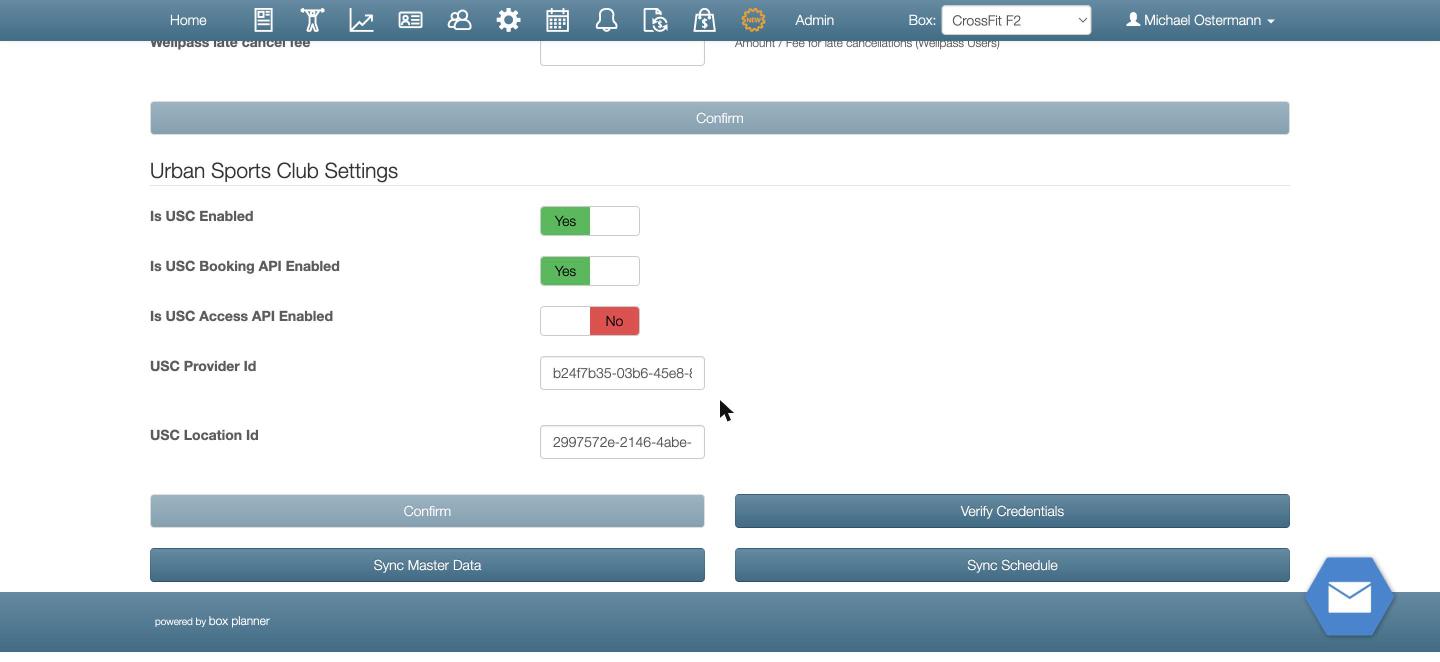
- Enter the credentials in BoxPlanner. On Box Settings → Third-Party Integrations → Urban Sports Club, fill in the USC Provider ID and USC Location ID, and enable Is USC Enabled and Is USC Booking API Enabled. Is USC Access API Enabled is only needed for the optional automatic check-in re-validation (see Special case: Free Training below) — not for basic booking/schedule sync to work.
- Verify the connection. Click Verify Credentials — BoxPlanner confirms it can reach USC with your details.
- Sync your master data. Click Sync Master Data. This sends your trainers and tracks to USC and lets them be mapped to USC sport categories (see Sport-category mapping below).
- Publish your schedule. Click Sync Schedule to publish your classes to USC. After the first sync, BoxPlanner keeps USC up to date automatically.
- Activation confirmation. USC processes activation requests within 3–5 business days. If your box has no existing schedule/bookings yet, activation happens as soon as the request is processed; if you already have an integrated schedule, activation is set ~14 days out to avoid booking conflicts. You'll get a confirmation email with the activation date, and your classes then become visible and bookable for USC members.
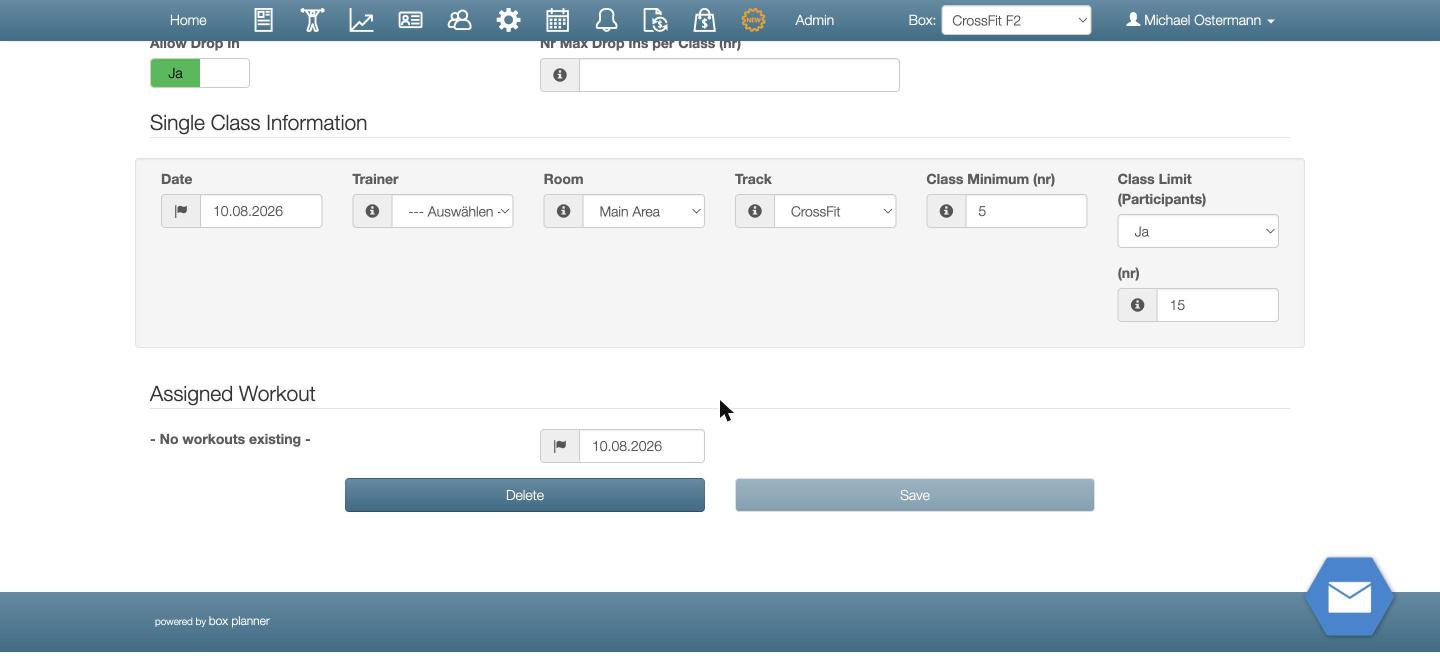
Note: only classes with Allow Drop In enabled (on the class/schedule edit page) will appear on Urban Sports Club.
How your classes appear on Urban Sports Club
BoxPlanner publishes each class (specific schedule) in your calendar to USC as a bookable event. What you set up in BoxPlanner drives what USC members see:
- Track → USC sport category. Each BoxPlanner track is mapped to a USC sport category during Sync Master Data. USC only shows classes whose category is covered by your USC contract.
- Capacity / drop-in split. USC only ever sees genuinely open drop-in spots, never your raw class capacity. If you set "Nr Max Drop Ins per Class", that's the hard cap on USC (and other aggregator) bookings for that class, independent of your class limit; if you leave it blank, USC can fill up to your regular class limit. Either way, a USC booking counts against both your class limit and the drop-in quota (when both are set), so USC members can never book past what BoxPlanner would actually accept.
- Automatic synchronisation. After the initial sync, BoxPlanner re-syncs your schedule automatically about every 30 minutes, so new classes, capacity changes and cancellations reach USC without any manual step. Allow up to ~30 minutes for a change to appear on your USC profile.
Only scheduled classes appear on USC — setting up a track or a template alone is not enough; the class must exist on a date in your calendar.
Sport-category mapping & synchronisation
When your integration is first connected, your BoxPlanner tracks are mapped to Urban Sports Club sport categories. If you add a new track / category, it needs to be mapped:
- Click Sync Master Data again (same button as in Getting started — Box Settings → Third-Party Integrations → Urban Sports Club) after adding a track so the new category is sent to USC.
- Mapping itself is fully self-service and instant — no USC support step needed. BoxPlanner matches your track name against USC's category list (exact match first, then partial match, then a keyword fallback table covering common track names — crossfit, hiit, yoga, cycling, and so on), defaulting to "Fitness" if nothing matches.
- The only case you'd need USC Partner Support is if the matched category isn't yet covered by your commercial USC contract — that's a contract question, not a technical one.
What is kept in sync automatically (within ~30 minutes): new classes and schedule changes, class capacity/availability, class cancellations.
Editing and cancelling classes
Most changes to a published class sync in place, with no effect on existing bookings — trainer, capacity, sport category, title and description can all be changed freely; USC picks the update up on the next sync (~30 min).
The one exception is the class's start time. Urban Sports Club's API does not allow editing an already-published event's start time — so if you move a class to a different time, BoxPlanner has no choice but to cancel the existing USC event and publish a new one, which drops any existing USC bookings on it (the box owner is notified when this happens with an active booking).
To avoid dropping bookings when moving a class: prefer creating a new class at the new time and cancelling the old one, rather than changing the time on an existing (recurring) class. Avoid moving classes that take place in less than 14 days, where bookings are most likely to already exist.
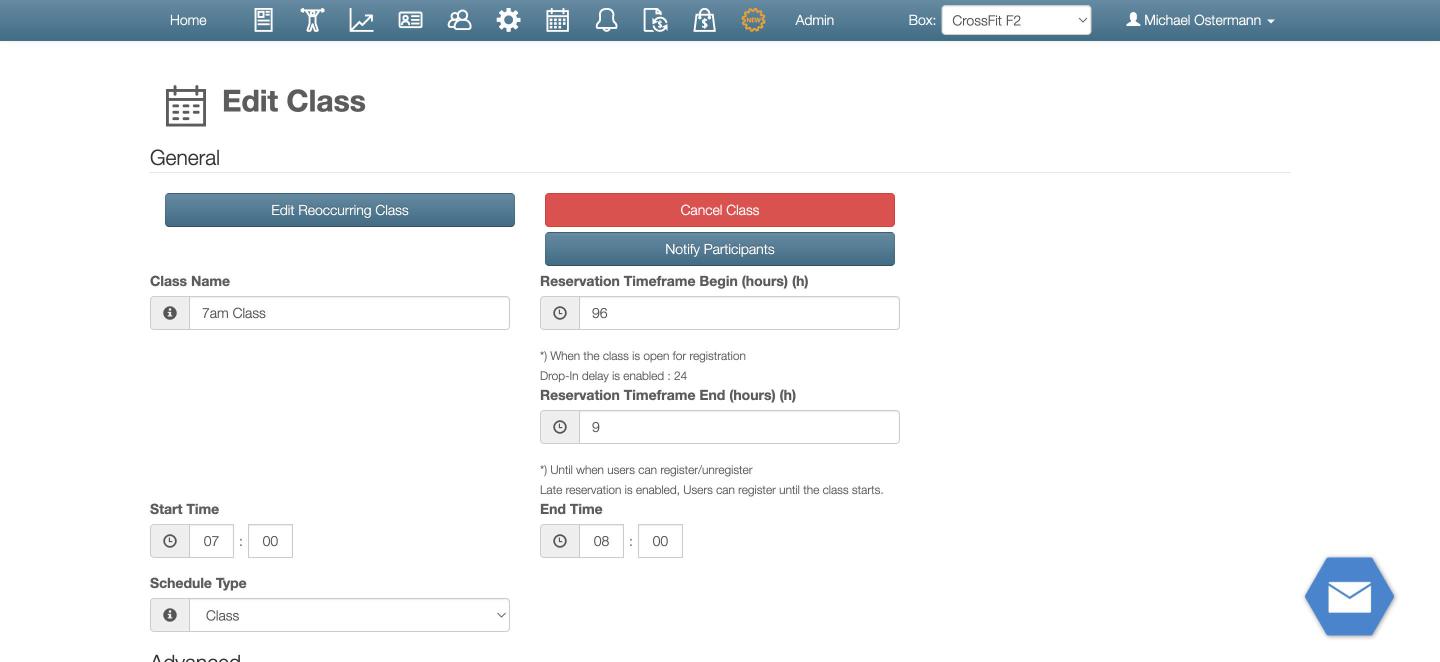
Cancelling a single class: Open the class (from your calendar, or via Schedule Functions on the Check In tab) and click Cancel Class (the red button at the top of the class-edit page, or in the Schedule Functions popup). This opens a small confirmation dialog with a Delete toggle:
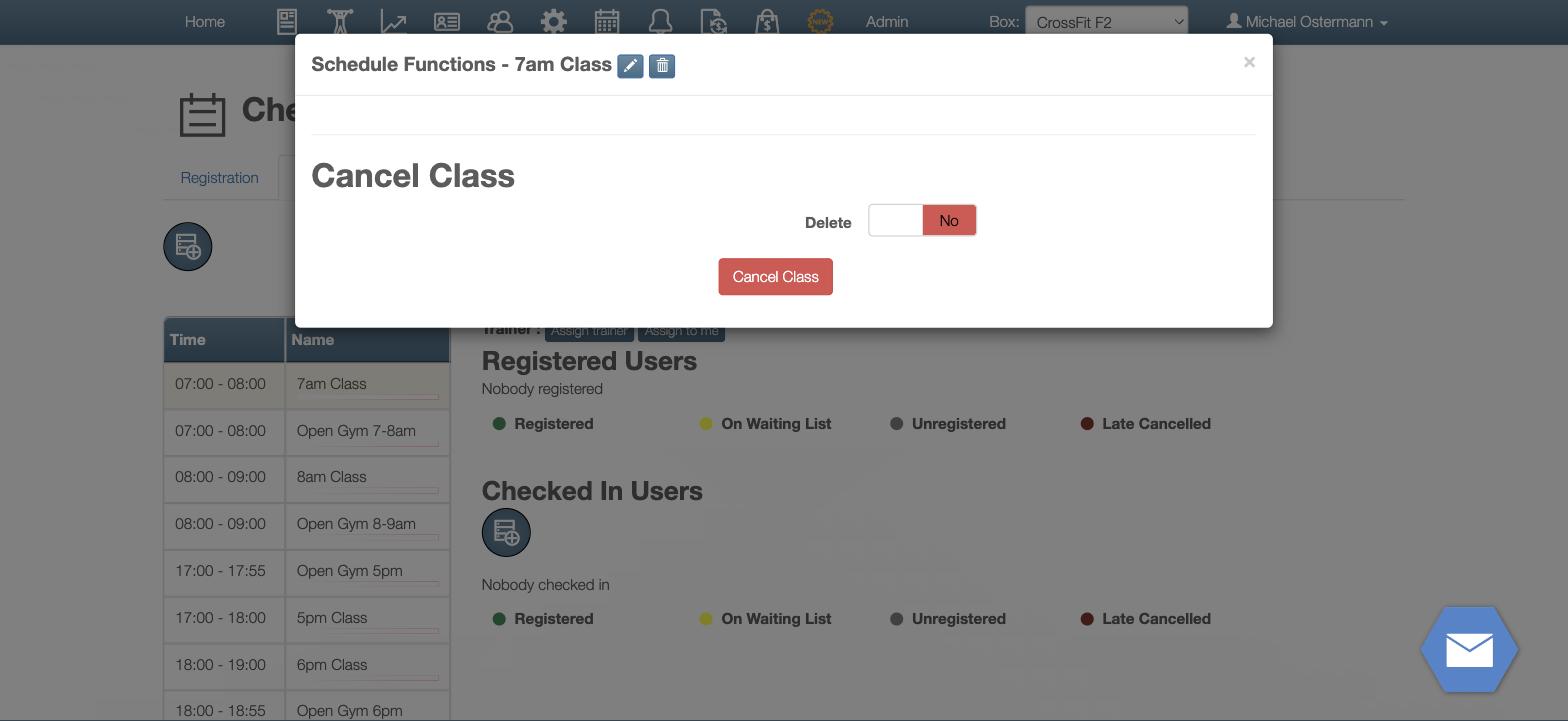
- Delete = No (default): cancels the class — USC bookings are cancelled automatically, the class stays visible in your history as cancelled.
- Delete = Yes: cancels and removes the class entry outright in the same action.
Use Notify Participants separately if you want to message registered members directly. Allow up to ~30 minutes for the cancellation to reflect on USC.
Once a class has existing registrations, BoxPlanner locks most of its other fields, consistent with the safe-to-edit-in-place fields discussed above.
We strongly recommend cancelling at least 2 hours in advance — later cancellations are often missed by members who may already be on their way.
Bookings, check-in and cancellations
- Booking. When a USC member books your class in the USC app, USC notifies BoxPlanner and the member is registered on the class in BoxPlanner automatically — they appear in your participant list like any other attendee.
- Check-in / attendance — the member must still check in via the USC app on arrival, even for a booked class. Booking a class does not by itself mark attendance; USC records attendance from the app check-in, and a member who books but never opens the USC app to check in will show as a no-show even if they physically attended. Tell members explicitly that booking is not the same as checking in.
- Coach-side attendance view. Attendance is coach-confirmed, not auto-marked. Owners/coaches use the Check In tab (next to Registration in the calendar area) — pick a date, select a class, and each registered member appears as a card with a Check In button the coach clicks on arrival.
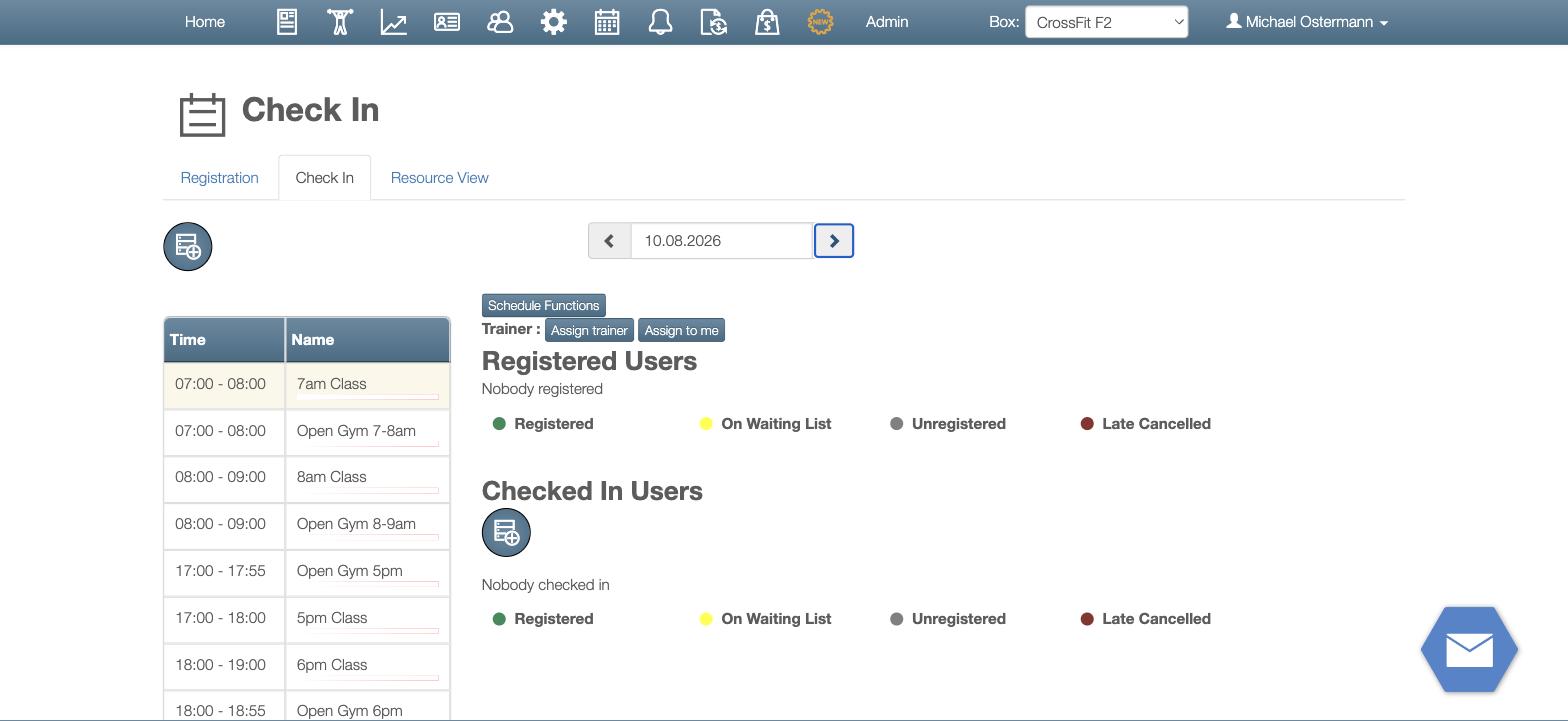 Drop-in members (including USC drop-ins) are tagged "DropIn: [Name]" on their card, distinguishing them from regular registered members at a glance.
- Cancellation & late-cancel window. USC applies a 12-hour cancellation window (members can cancel free of charge up to 12 hours before the class). Cancellations inside that window are treated as late cancellations; BoxPlanner records them accordingly. Unlike Wellpass/Wellhub, there is no separate BoxPlanner fee toggle for USC late cancellations — compensation for late cancels and no-shows is handled entirely through your commercial USC contract and USC's own payout process. BoxPlanner's only role is telling USC where your cancellation cutoff is, so USC's late-cancel logic lines up with what BoxPlanner actually allows.
- No-show. Handled per your USC agreement (USC compensates check-ins/no-shows per your contract).
Special case: Free Training
Free Training is not created through the schedule integration — it is set up in the USC Partner Portal, exactly as USC describes for other booking systems. Free Training is for offering access to a training area or equipment (a gym floor, open-gym, etc.) rather than a scheduled class — no trainer or participant count is required, and it is an all-day offering for the days/times you specify.
For Free Training, BoxPlanner records the check-in:
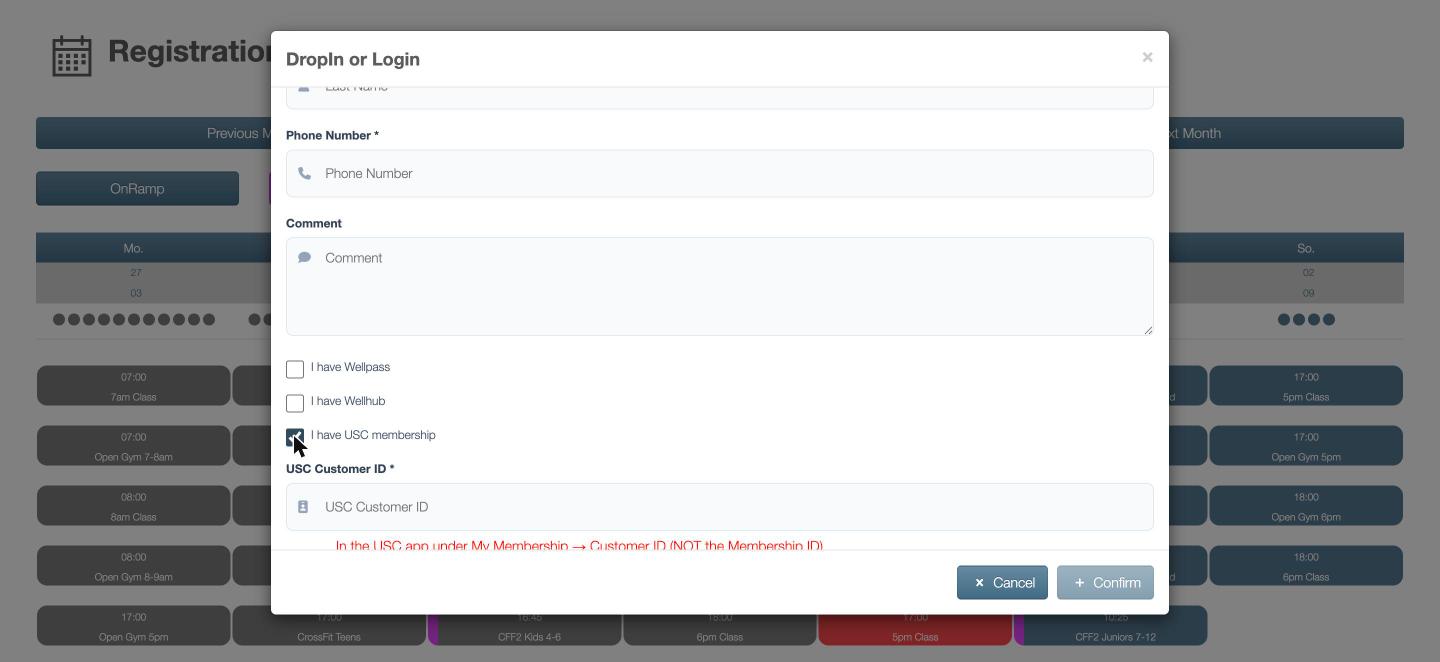
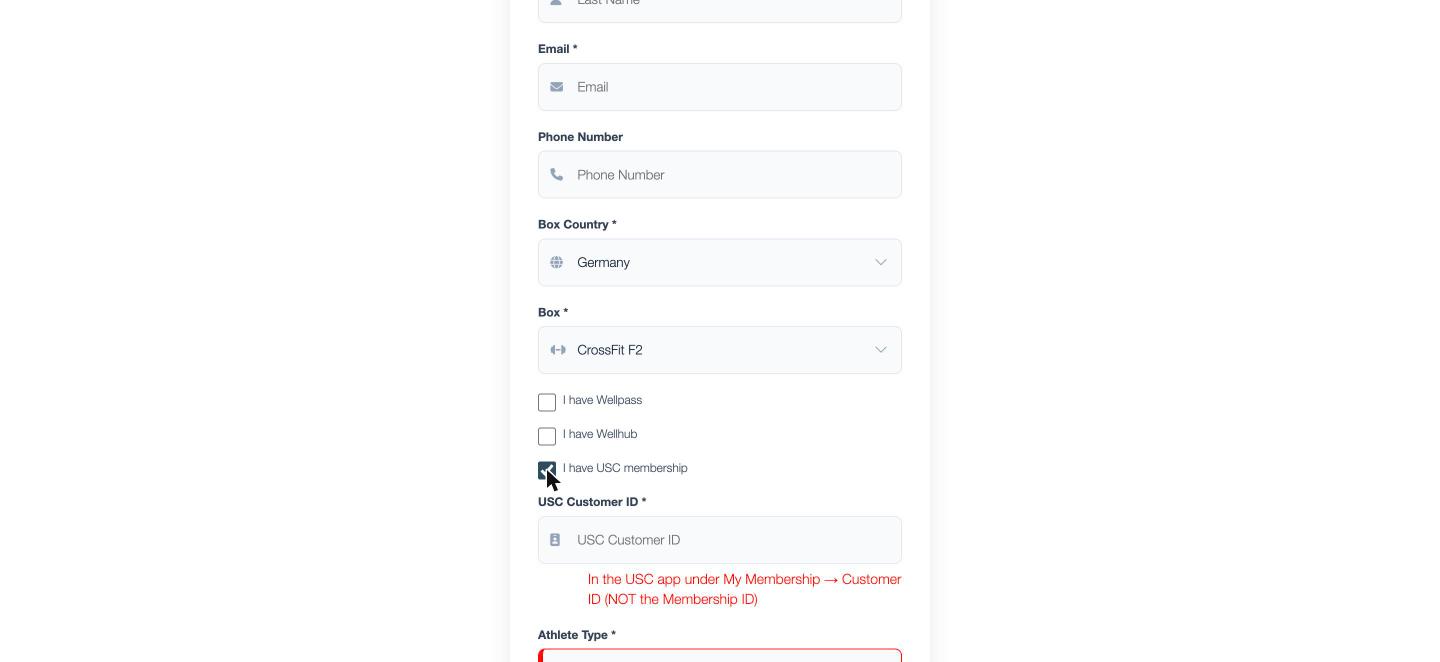
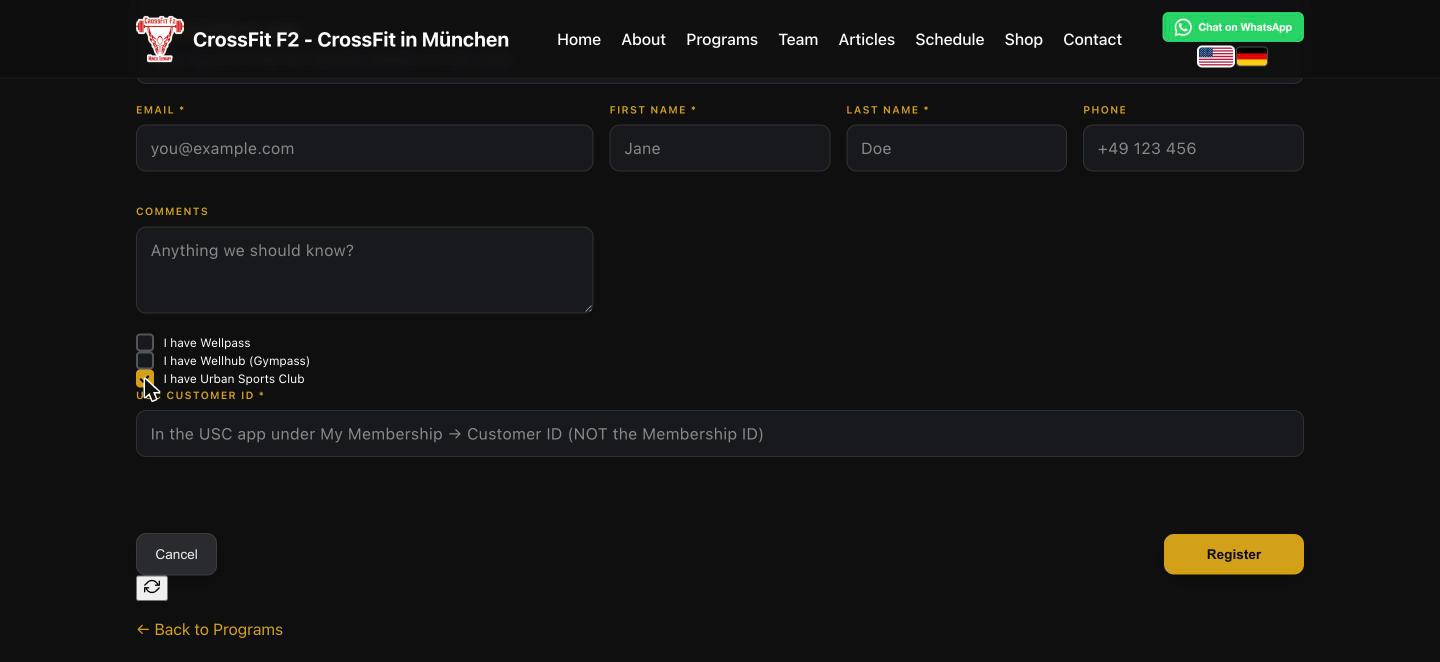
- The member links their USC membership in BoxPlanner. Like the "I have Wellpass / I have Wellhub" options, a USC member enters their USC Customer ID so BoxPlanner can recognise them. They can do this at sign-up, on a drop-in, or an owner can set it on the member's detail page. A member may see either a "membership number" or a "customer ID" in the USC app for what they'd call "their USC ID" — BoxPlanner shows an explicit hint next to the field: "In the USC app under My Membership → Customer ID (NOT the Membership ID)".
- The member checks in with the USC app when they arrive at your box.
- USC notifies BoxPlanner, and attendance is marked automatically — always, with no setting to configure. USC members can only check in by scanning the venue's QR code in the USC app, and USC's own docs make that mandatory — so a verified check-in from USC is the attendance event, and BoxPlanner marks it immediately.
- (Optional, terminal boxes only) Access API re-validation. If your box runs a physical door/turnstile terminal and has Is USC Access API Enabled turned on, BoxPlanner additionally re-validates the check-in against USC's Access Control API before finalising it. Most boxes don't need this.
If a USC member checks in but hasn't linked their USC ID, BoxPlanner notifies the box owner so the member can be linked.
Pricing
€15/month, flat — with a 30-day free trial. That's it. No per-booking fees, no usage cap, no separate booking-software subscription to buy first — the integration is a built-in module of BoxPlanner, not a bolt-on.
A lot of connector pricing in this space is metered — you pay per USC booking, on top of a mandatory core subscription that itself scales with your booking volume. A well-known booking-software competitor, Eversports, charges €0.39 per USC booking/month, capped at €39/month — but only once you're already paying €49–229/month for their own core platform. Once you clear about 38 USC bookings in a month, BoxPlanner's flat €15 is already cheaper than their metered connector fee alone — before even counting their mandatory core subscription. Run multiple aggregators (USC + Wellhub + ClassPass, say)? Metered models charge the per-booking fee per connector, separately — so the gap compounds. BoxPlanner's connectors are each flat, and stack the same way: predictable, however many aggregators you run.
Troubleshooting / FAQ
My class isn't showing on Urban Sports Club. Make sure the class is enabled for USC/drop-in booking and its track is mapped to a USC category covered by your contract. New classes are picked up on the next sync (~30 min). Check the Provider ID/Location ID are correct (use Verify Credentials).
A change I made cancelled the bookings. Only moving a class to a different start time does this — trainer, capacity, category, title and description changes are all safe. If you need to change a class's time, create a new class instead.
A USC member's Free Training check-in wasn't recorded. They likely haven't linked their USC ID in BoxPlanner. Add it on their member detail page; the owner also receives a notification when an unlinked USC check-in arrives.
A member booked a class but shows as a no-show even though they attended. Booking a class in the USC app is not the same as checking in. The member must still open the USC app and check in on arrival — remind members of this explicitly, especially first-time USC bookers.
Support
For questions about setup or activation, contact USC via integrations@urbansportsclub.com. For help with the BoxPlanner side of the integration, contact BoxPlanner support at support@box-planner.com.
Image Gallery